
Host selectors
Feature availability
| Client modes | Zero Trust plans ↗ |
|---|---|
| Traffic and DNS mode | Enterprise |
| System | Availability | Minimum client version |
|---|---|---|
| Windows | ✅ | 2025.4.929.0 |
| macOS | ✅ | 2025.4.929.0 |
| Linux | ✅ | 2025.4.929.0 |
| iOS | ✅ | 1.11 |
| Android | ✅ | 2.4.2 |
| ChromeOS | ✅ | 2.4.2 |
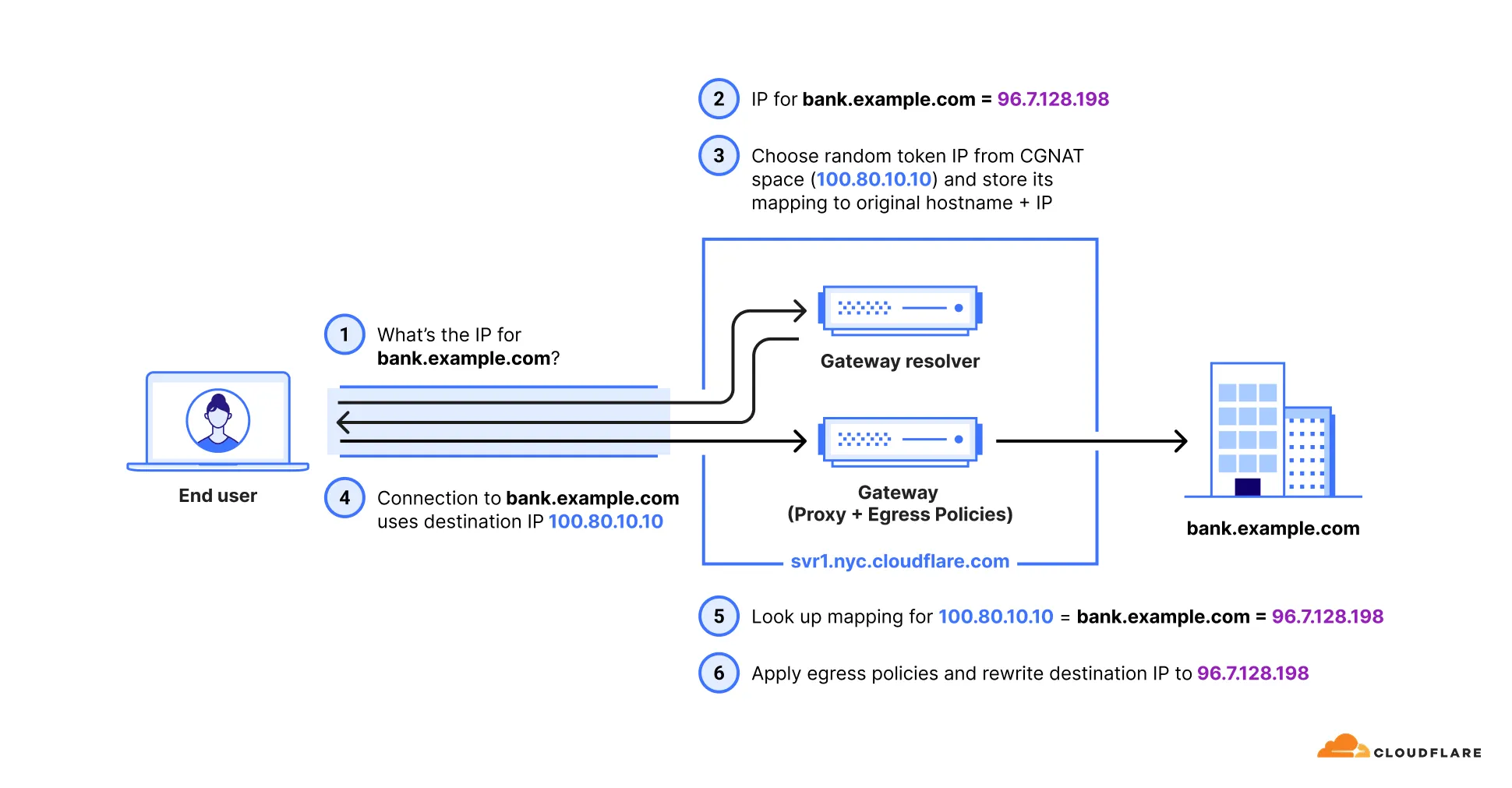
Egress policies are evaluated at Layer 4 (https://www.cloudflare.com/learning/ddos/glossary/open-systems-interconnection-model-osi/ ↗) of the OSI model, where only IP addresses are available — not hostnames. The Application, Content Categories, Domain, and Host selectors need to match traffic by hostname, so Gateway uses a two-step process:
- When Gateway receives a DNS query for a hostname that matches one of these selectors, it initially resolves the query to a temporary IP in the
100.80.0.0/16or2606:4700:0cf1:4000::/64range. - When traffic arrives with this temporary destination IP, Gateway can identify which hostname the connection belongs to, apply the correct egress policy, then replace the temporary IP with the real destination IP before forwarding the traffic.
These selectors require additional configuration before they work.
To turn on the selectors for your account:
- In Cloudflare One ↗, go to Traffic policies > Traffic settings.
- In Policy settings, turn on Allow egress policy host selectors.
Use the Patch Zero Trust account configuration endpoint to update your Zero Trust configuration. For example:
curl "https://api.cloudflare.com/client/v4/accounts/$ACCOUNT_ID/gateway/configuration" \ --request PATCH \ --header "Authorization: Bearer $CLOUDFLARE_API_TOKEN" \ --json '{ "settings": { "host_selector": { "enabled": true } } }'Traffic must be on-ramped to Gateway with the following methods:
| On-ramp method | Compatibility |
|---|---|
| Cloudflare One Client | ✅ |
| PAC files | ✅ |
| Browser Isolation | ✅ |
| WARP Connector | ❌ |
| Cloudflare WAN | ✅ |
Traffic from unsupported on-ramp methods resolves using your default Gateway settings. If you use DNS locations to send DNS queries to Gateway (over IPv4, IPv6, DNS over TLS, or DNS over HTTPS), Gateway does not return the initial resolved IP and the host selectors do not apply.
To configure your Zero Trust organization to use Host selectors with Egress policies:
-
Make sure you deploy the following version of the Cloudflare One Client on your users' devices:
- Desktop: Cloudflare One Client version 2025.4.929.0 or later
- iOS: Cloudflare One Client version 1.11 or later
- Android and Chrome OS: Cloudflare One Client version 2.4.2 or later.
If you need to support devices running prior versions of WARP, add and deploy the following key-value pair to your devices' WARP configuration file (
mdm.xmlon Windows and Linux orcom.cloudflare.warp.pliston macOS):<array><dict><key>doh_in_tunnel</key><true/></dict></array>
-
In your WARP device profile, configure Split Tunnels such that the initial resolved IPs route through the WARP tunnel. Configuration depends on your Split Tunnels mode:
- Exclude mode: Delete
100.64.0.0/10from your Split Tunnels list. We recommend adding back the IP ranges that are not explicitly used for Cloudflare One services. This reduces the risk of conflicts with existing private network configurations that may use the CGNAT address space. - Include mode: Add Split Tunnel entries for the following IP addresses:
- IPv4:
100.80.0.0/16 - IPv6:
2606:4700:0cf1:4000::/64
- IPv4:
- Exclude mode: Delete
The Cloudflare One Client must be set to Traffic and DNS mode for traffic affected by these selectors to route correctly.
Starting with Chrome 142 ↗, the browser restricts requests from websites to local IP addresses, including the Gateway initial resolved IP CGNAT range (100.80.0.0/16). Because this range falls within 100.64.0.0/10, Chrome categorizes these addresses as belonging to a local network. When a website loaded from a public IP makes subrequests to a domain resolved through an initial resolved IP, Chrome treats this as a public-to-local network request and displays a prompt asking the user to allow access to devices on the local network. Chrome will block requests to these domains until the user accepts this prompt.
This commonly occurs when an Egress policy matches broadly used domains (such as cloudfront.net or github.com), causing subrequests from public pages to resolve to the 100.80.0.0/16 range.
If the affected request originates from within an iframe (for example, an application embedded in a third-party portal), the iframe must declare the local-network-access permission for the browser prompt to appear in the parent frame:
- Chrome 142-144: Use the
allow="local-network-access"attribute on the iframe element. - Chrome 145+: The permission was split into
allow="local-network"andallow="loopback-network".
If iframes are nested, every iframe in the chain must include the appropriate attribute. Since third-party applications control their own iframe attributes, this may not be configurable by the end user.
To avoid this issue, choose one of the following options:
- Override IP address space classification (Chrome 146+): Use the
LocalNetworkAccessIpAddressSpaceOverrides↗ Chrome Enterprise policy to reclassify the100.80.0.0/16range as public. This is the most targeted fix because it only changes the classification for the initial resolved IP range rather than disabling security checks entirely. - Allow specific URLs (Chrome 140+): Use the
LocalNetworkAccessAllowedForUrls↗ Chrome Enterprise policy to exempt specific websites from Local Network Access checks. Note thathttps://*is a valid entry to disable checks for all URLs. - Allow specific URLs (Chrome 146+): Use the
LocalNetworkAllowedForUrls↗ Chrome Enterprise policy, which replacesLocalNetworkAccessAllowedForUrlsstarting in Chrome 146. - Opt out of Local Network Access restrictions (Chrome 142-152): Use the
LocalNetworkAccessRestrictionsTemporaryOptOut↗ Chrome Enterprise policy to completely opt out of Local Network Access restrictions. This is a temporary policy and will be removed after Chrome 152. - Disable the Chrome feature flag: Go to
chrome://flagsand set the Local Network Access Checks flag to Disabled. This approach is suitable for individual users but not for enterprise-wide deployment.
If a domain matches a DNS Override policy, Gateway will not apply the initial resolved IP mapping for that domain. This means host-based egress selectors (Application, Content Categories, Domain, and Host) will not evaluate against traffic to the overridden domain. Traffic to these domains will use the default Cloudflare egress method.
Host selectors do not support HTTPS DNS record types. When a domain uses HTTPS records for connection establishment, Gateway cannot map the DNS query to a hostname for egress policy evaluation. Traffic to these domains will use the default Cloudflare egress method instead of matching a host-based egress policy.
If you need to apply egress policies to a domain that uses HTTPS records, use an IP-based selector (such as Destination IP) instead.